
Every change goes through your gates
The question Who decided this could ship?
Workflows that say who approves each stage, permissions set project by project, and agents that are granted actions rather than keys. Walk through an approval in Eido Build.
 Start the walkthrough
In this chapter
Every step, in order. Pick one to start the walkthrough there.
-
Step 1 of 10 Your process, written down once
Each kind of work has a workflow, the stages it goes through in order. A feature takes the full path from design to merge. A bug starts with a diagnosis. These are the Customer Portal's, and you can change any of them.
Click Standard delivery
-
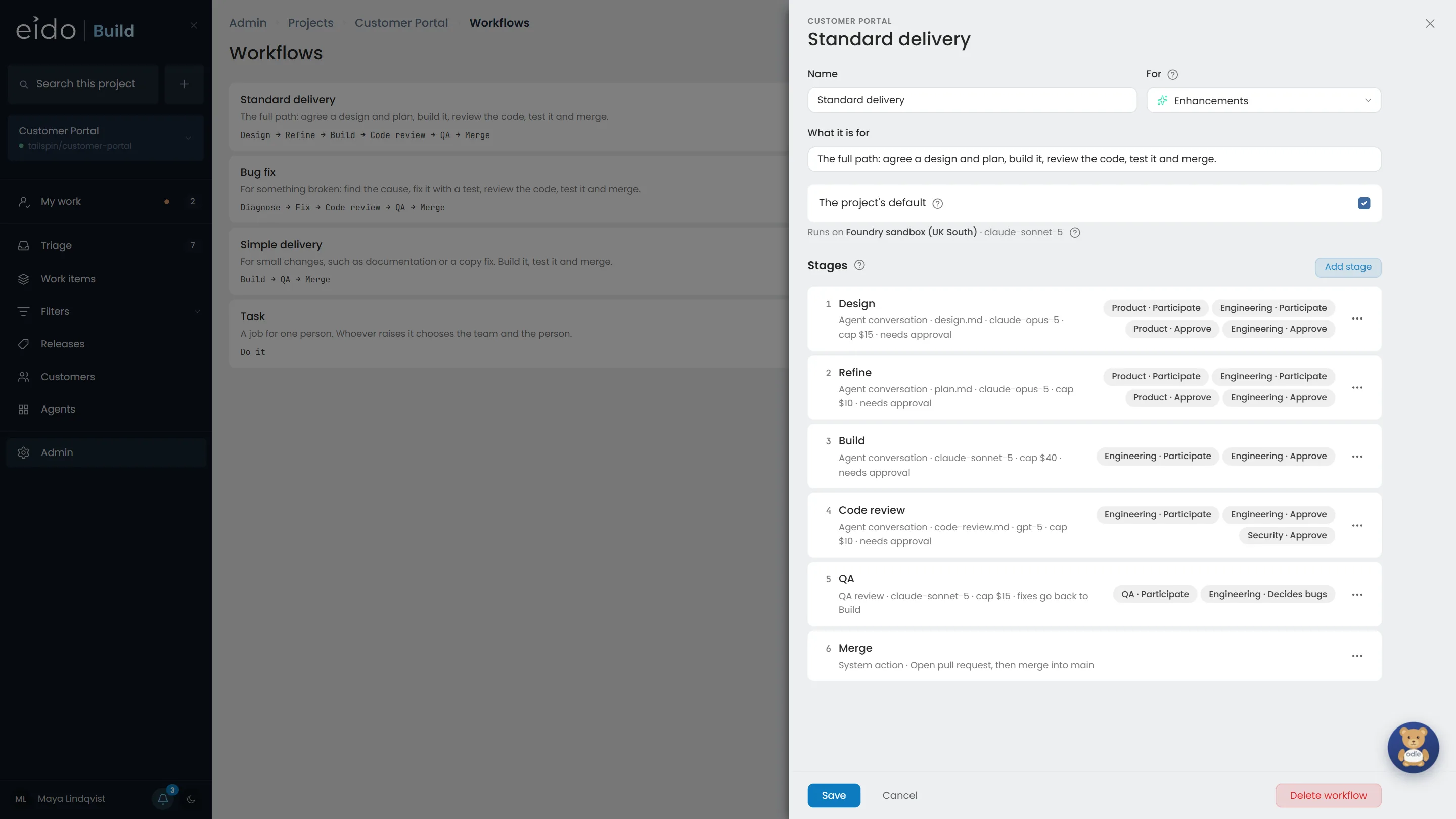
Step 2 of 10 Every stage names who works on it and who approves it
Four of the six stages are agents. Each says which teams take part and which teams must approve before the work moves on, with the model it runs on and the most it may spend. Code review here needs Engineering and Security.
Click Code review
-
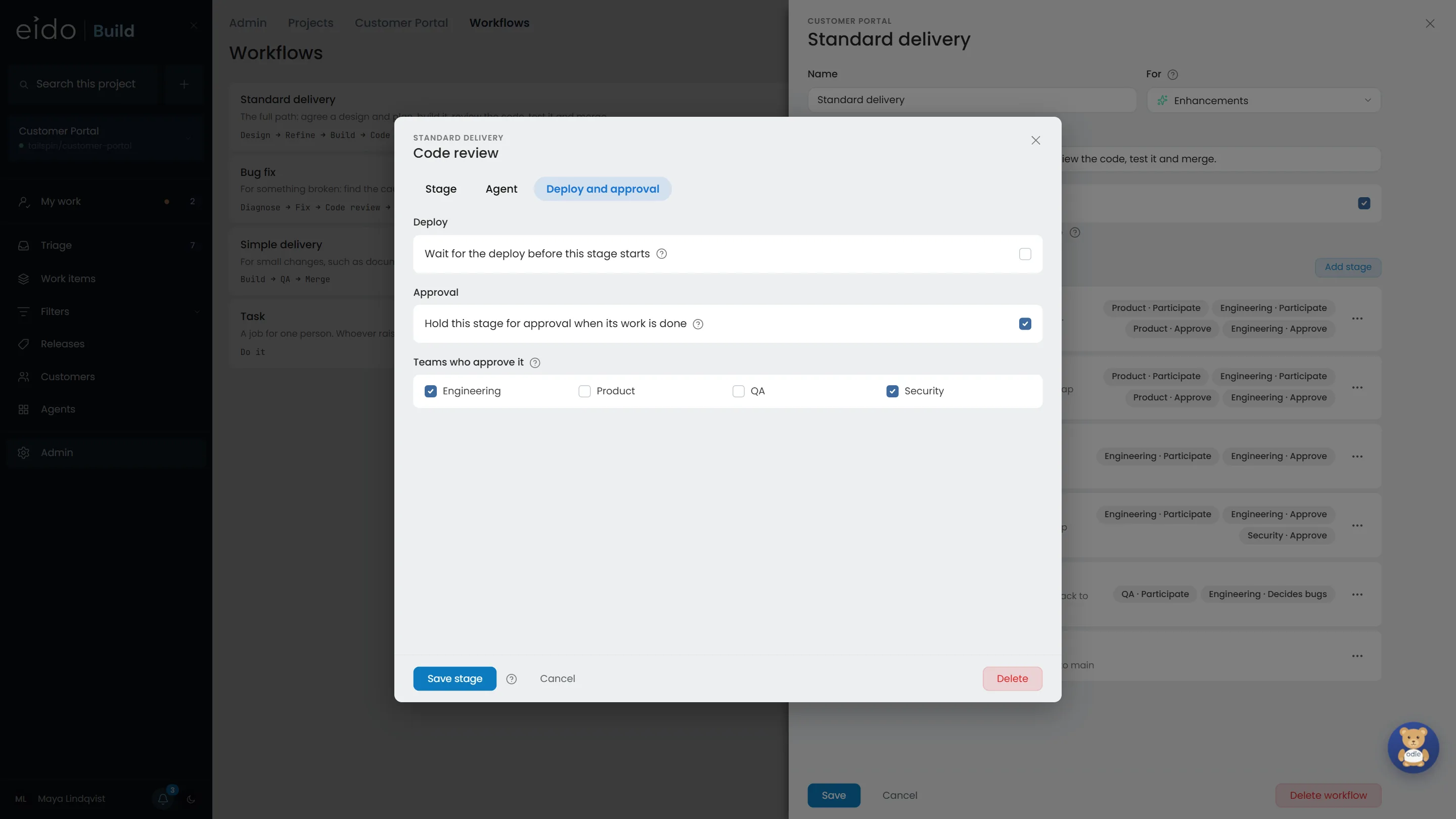
Step 3 of 10 A gate is a setting, not a habit
With Hold this stage for approval ticked, the agent can finish its work but the work item does not move on until somebody in one of these teams approves it.
-
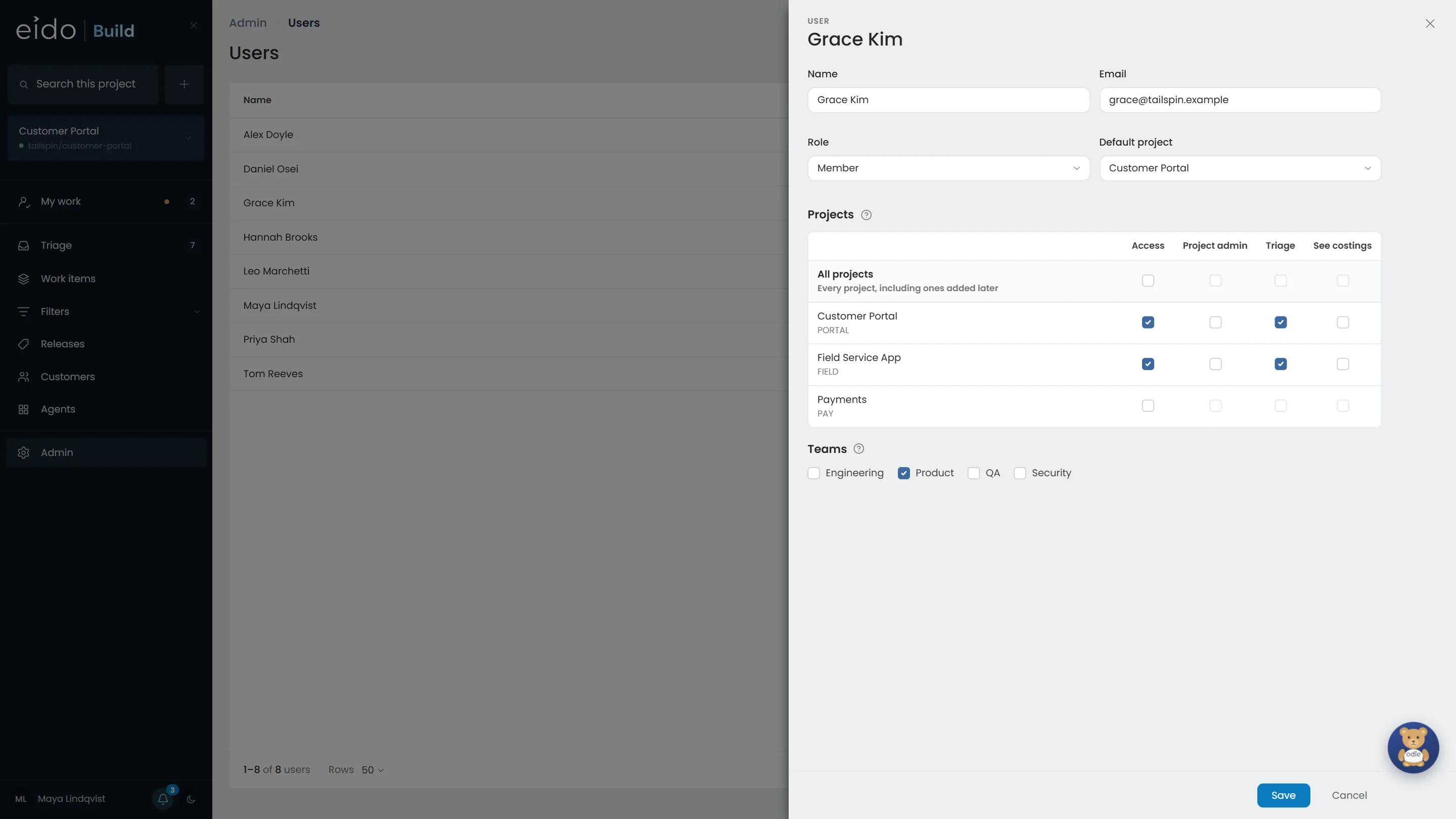
Step 4 of 10 Who may do what, project by project
Access, project admin, triage and who can see costs are granted per project. Grace can triage the Customer Portal and the field app, cannot see what either costs, and cannot see Payments at all.
-
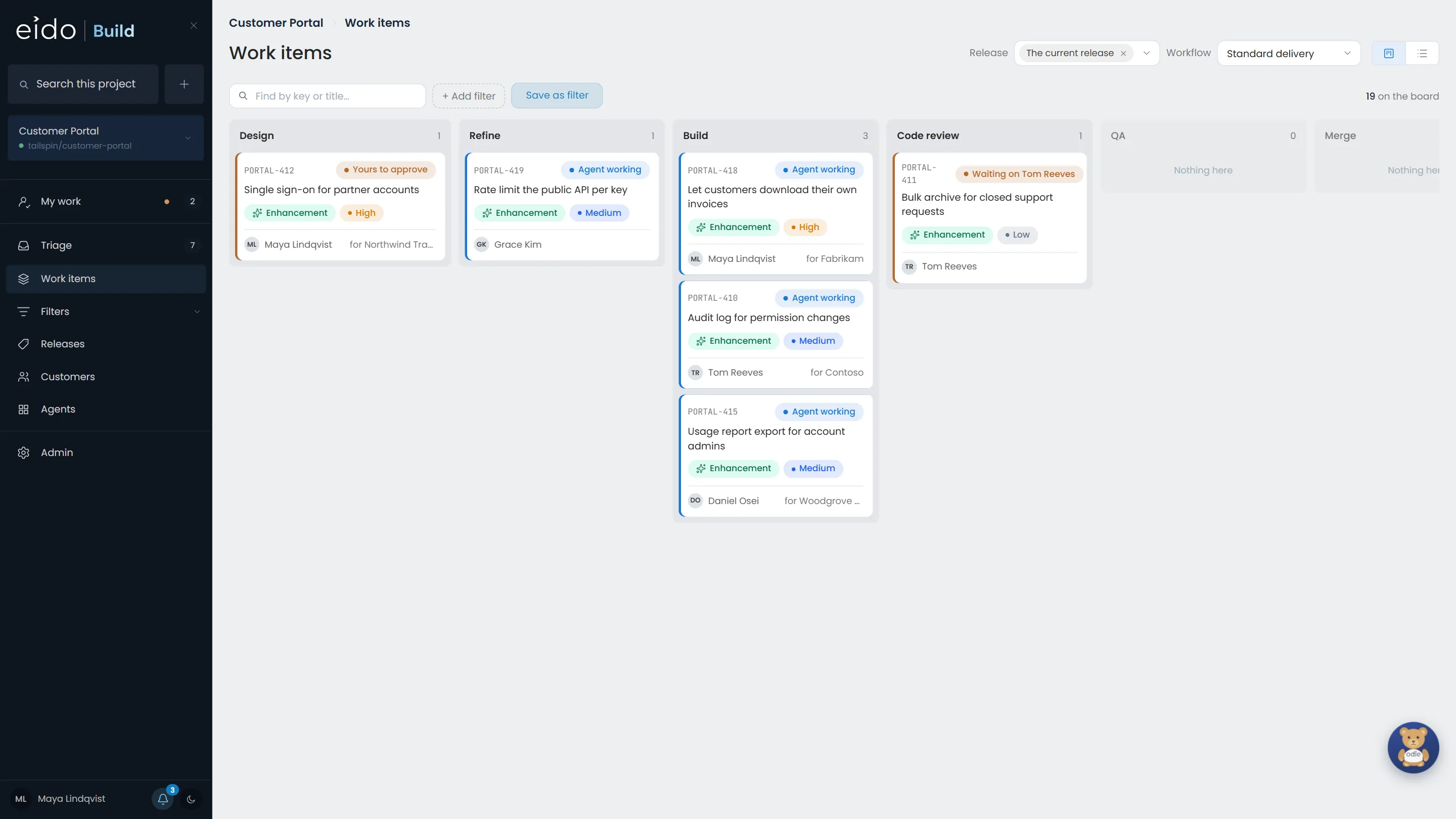
Step 5 of 10 Every piece of work, and who it is waiting on
The board's columns are the workflow's stages. Each card says whether an agent is working on it or a person is needed, and which person. One is waiting on you.
Click PORTAL-412
-
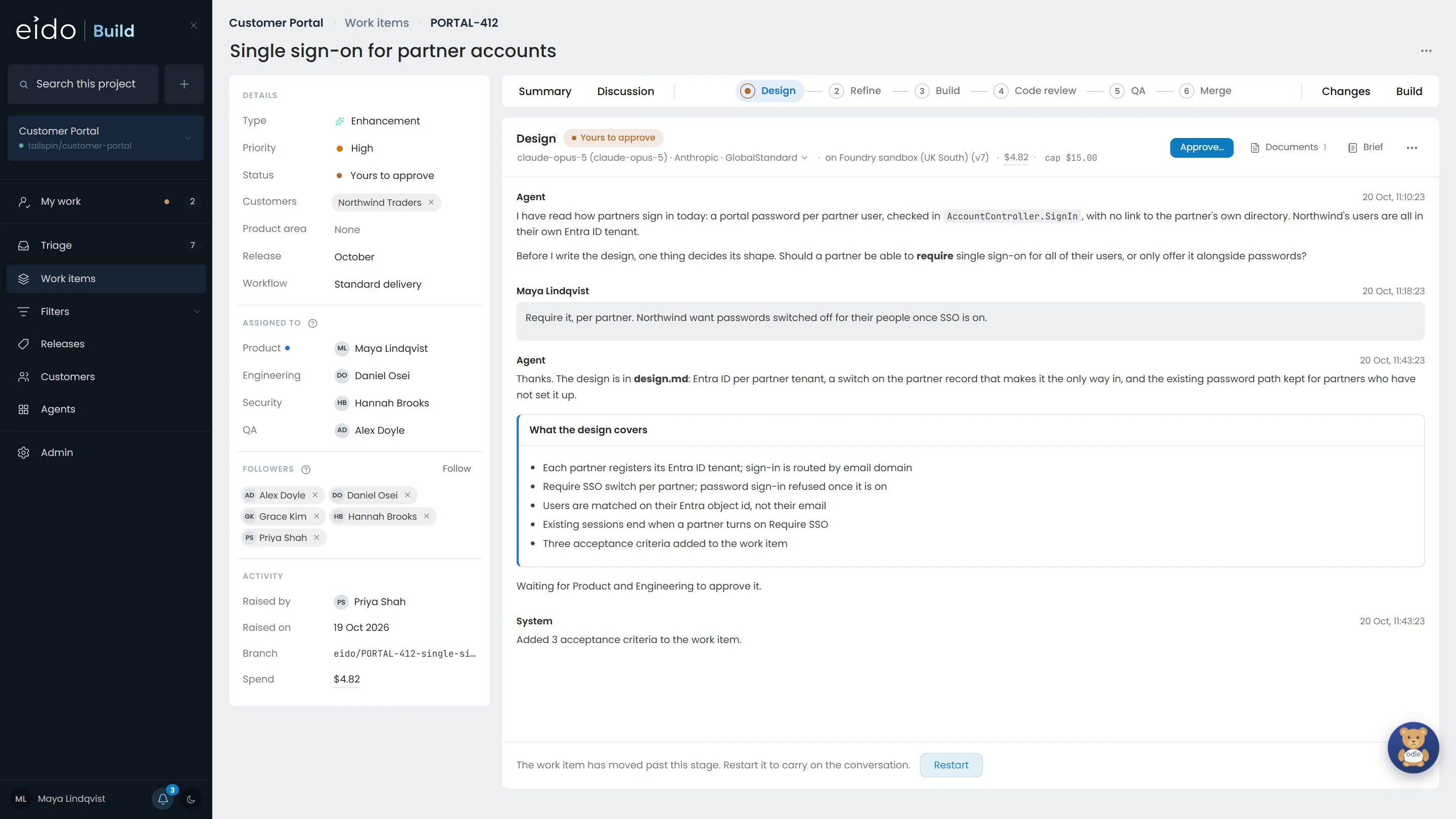
Step 6 of 10 The agent has stopped at the gate
The Design agent asked one question, wrote the design, added three acceptance criteria and stopped. Building cannot start until Product or Engineering approves. What it cost so far, and its cap, are on the line under the stage name.
Click Documents
-
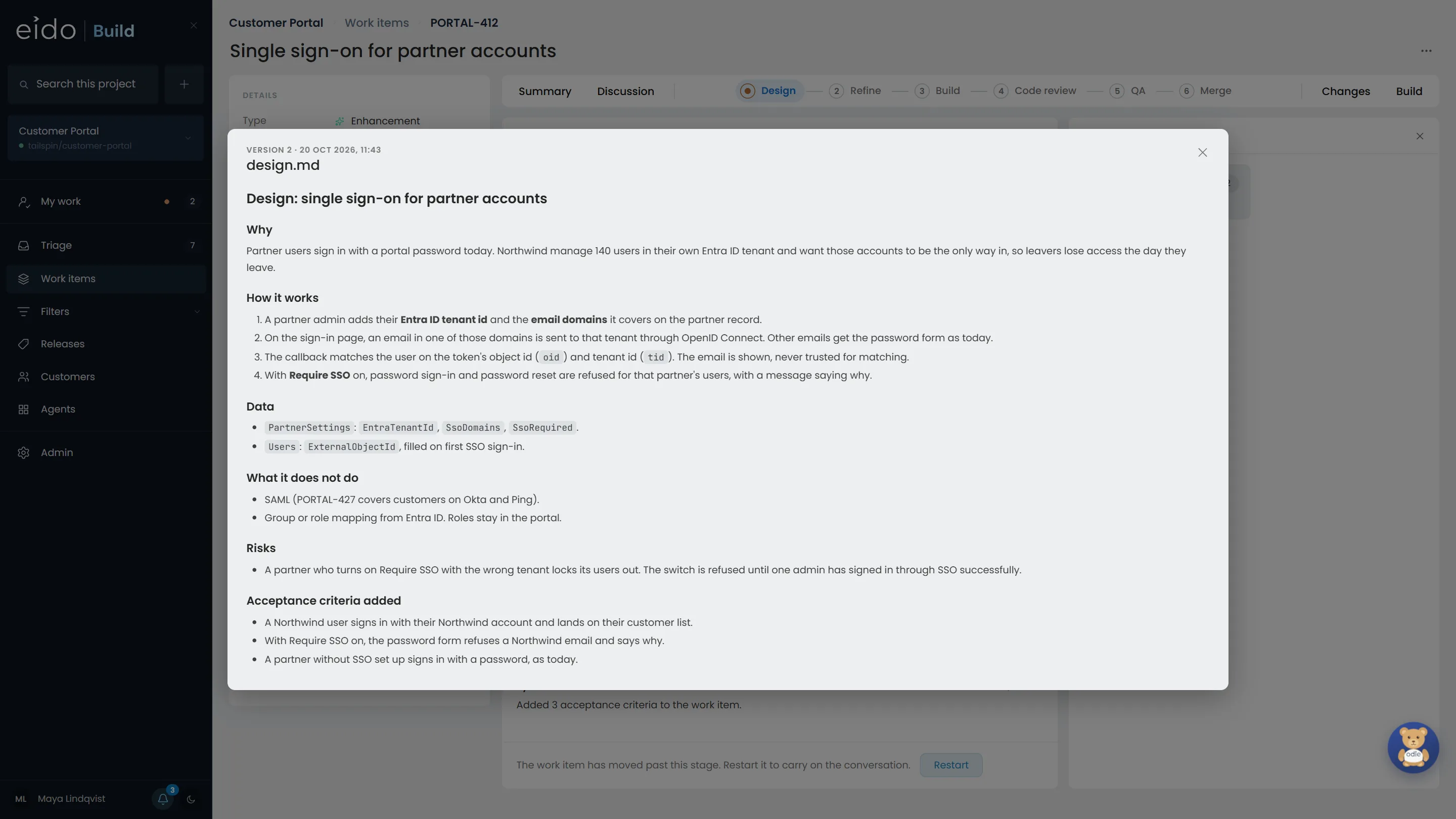
Step 7 of 10 Read what you are approving
Every document is versioned and dated. This is version 2, rewritten after the agent's question was answered. It is also committed to the work item's branch, so the reasoning stays with the code.
-
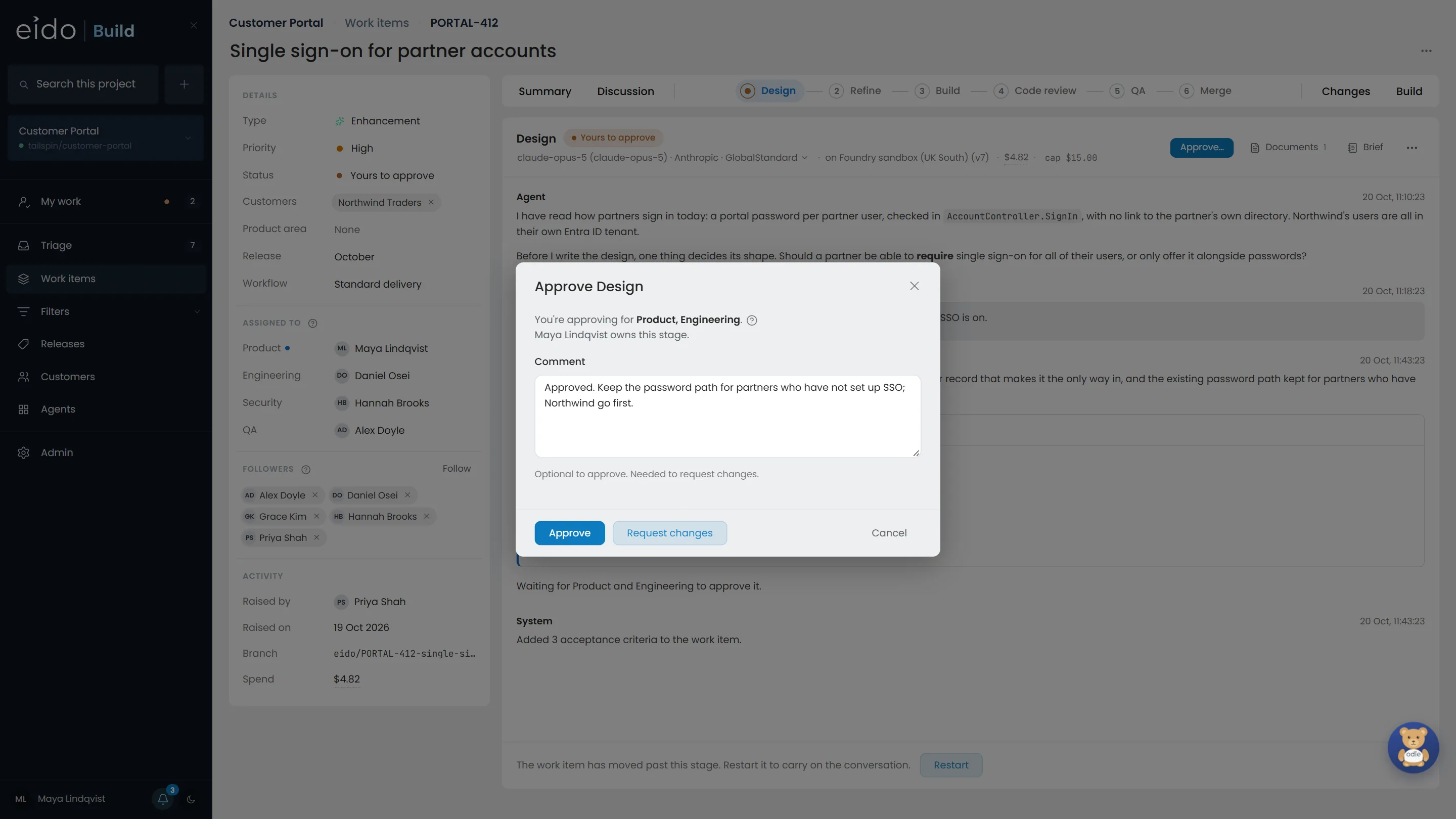
Step 8 of 10 Approve, or send it back with a reason
You approve for the teams you are on. Request changes needs a comment, and the comment goes back to the agent that wrote the design, which revises it and brings it back to this gate.
Click Approve
-
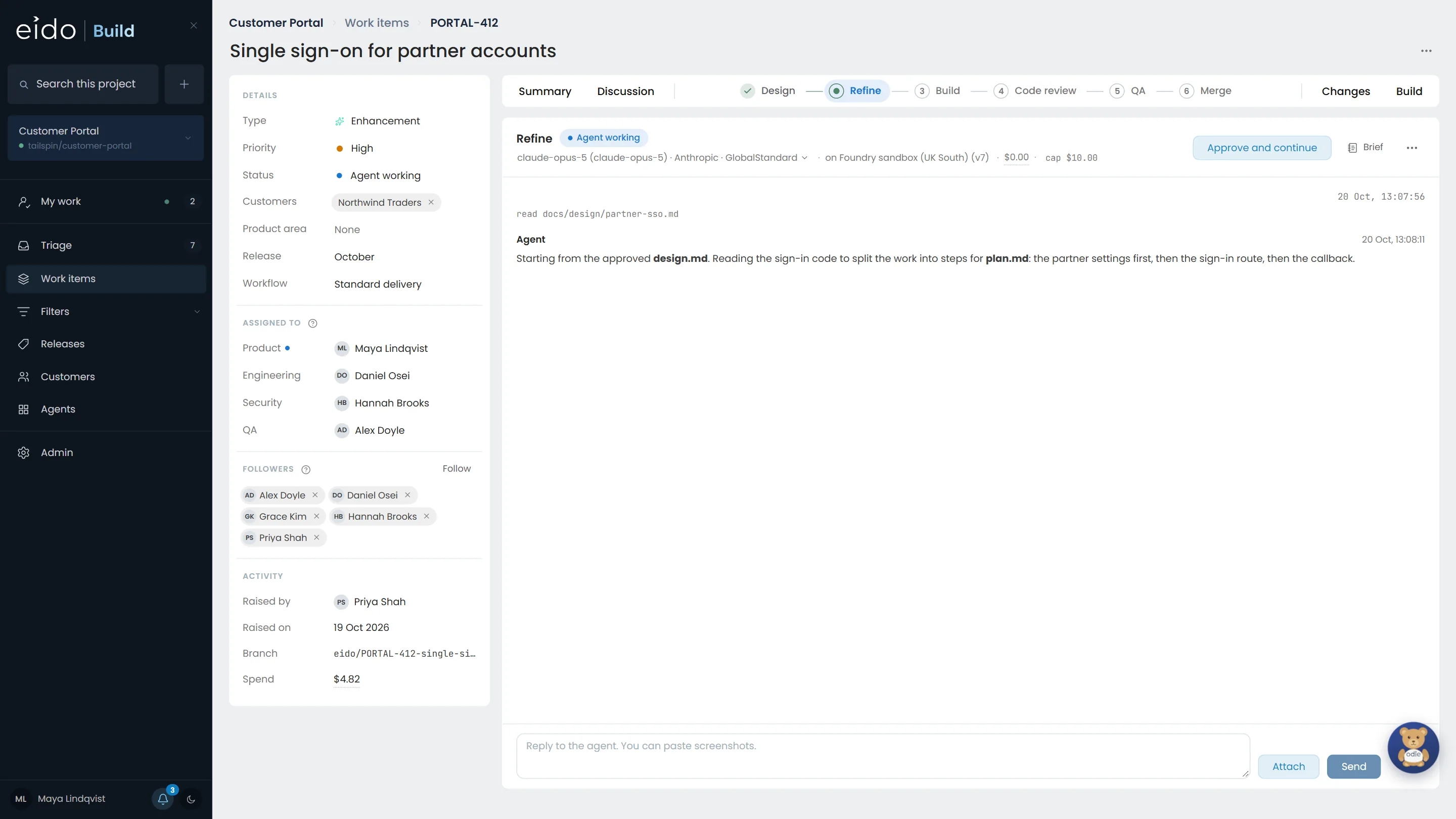
Step 9 of 10 Approved, and the next stage starts
Design is done, your approval and comment are on the record, and Refine has already started from the approved design. Each stage starts from what was approved before it.
-
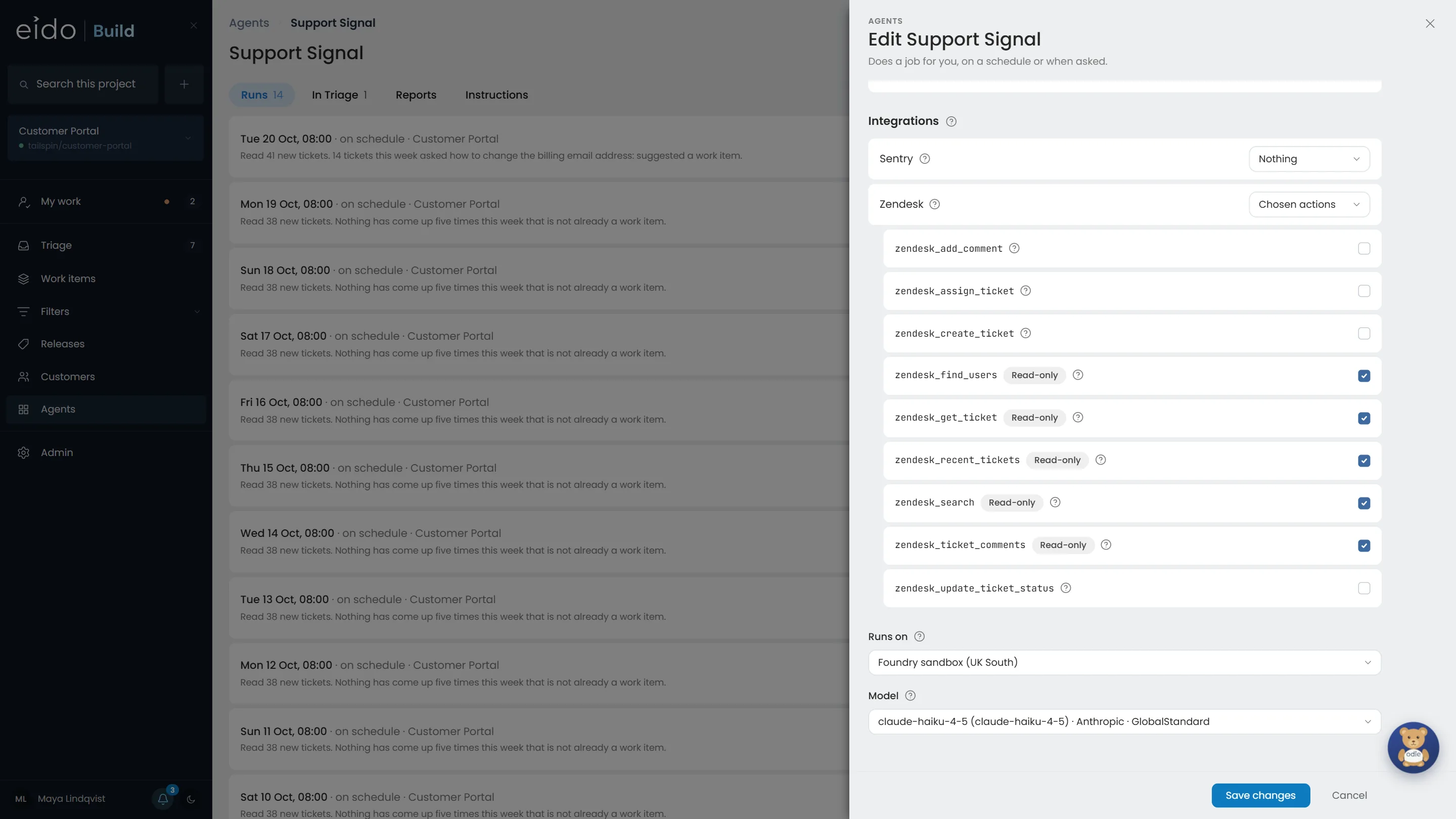
Step 10 of 10 Agents get actions, never keys
Support Signal may search and read Zendesk tickets. It may not reply to a customer, change a ticket or call anything it was not granted, and it never sees the API token. Eido Build makes each call for it, with the credential kept on its side of the wire.
Agents do the work. People decide what ships.
Your process is written down once, each gate names the teams that approve it, and nothing moves past a gate without one of them. Install Eido Build into your own Azure subscription, or talk to us about how your teams approve work today.
More chapters
The whole tour-
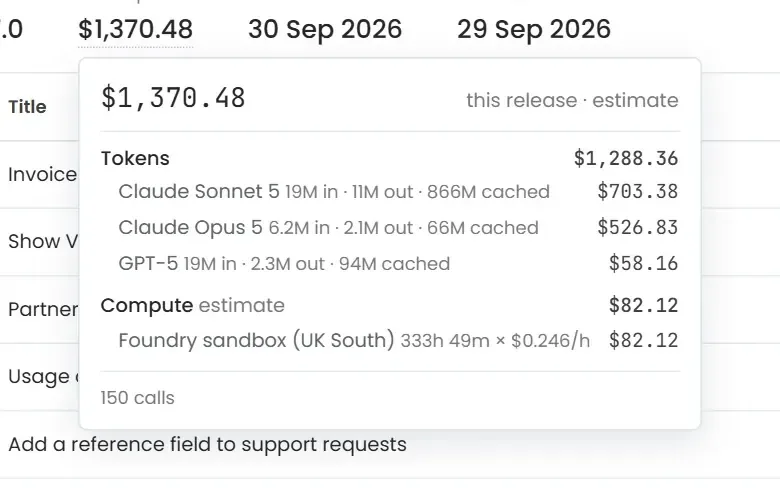 02 Cost control Seen Know what every release cost Where did the AI budget go?
-
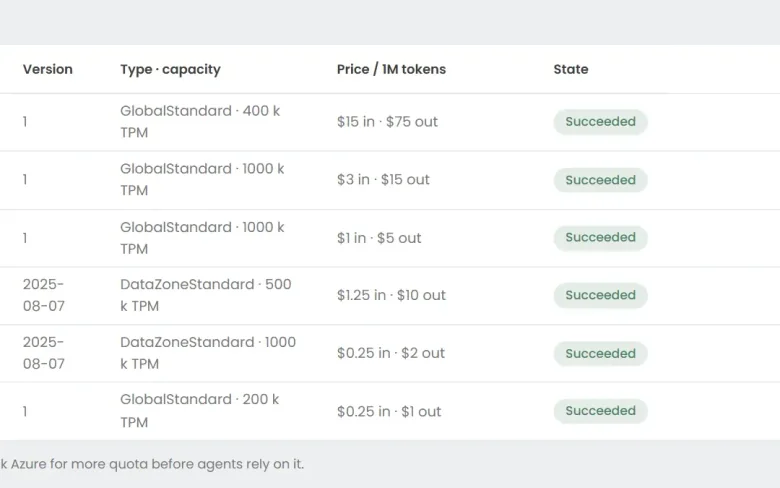 03 Foundry Seen Your models, in your Azure Can we use the models we have already approved?
-
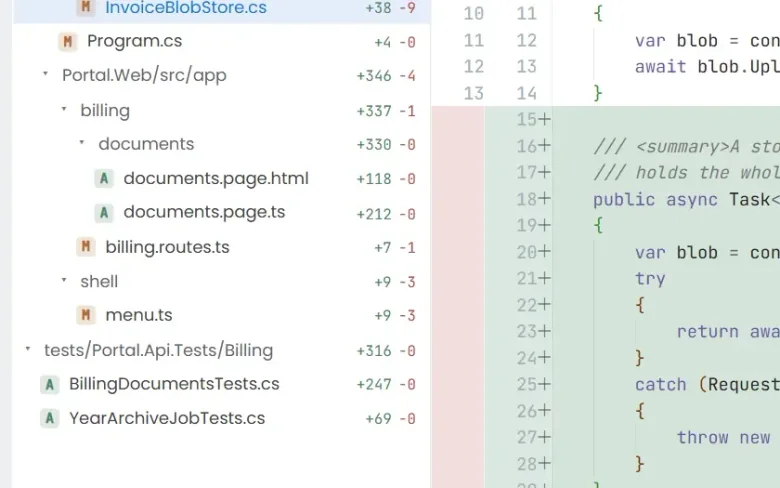 04 Ticket to merge Seen From a ticket to a merged pull request What does the work actually look like?
-
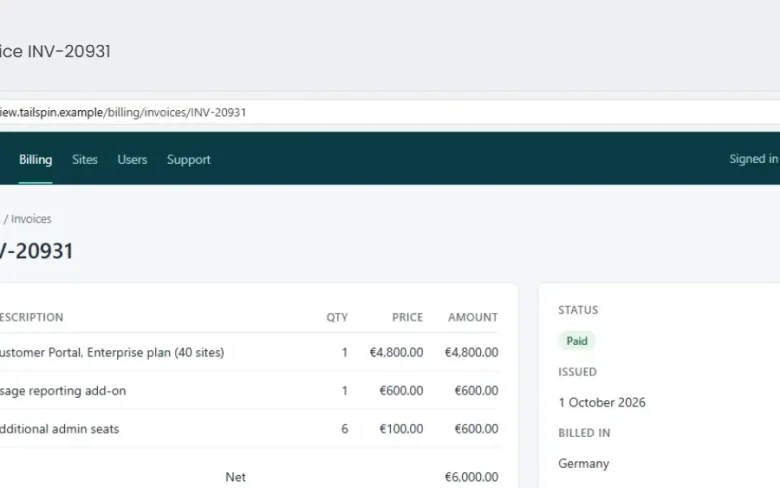 05 QA with evidence Seen Tested, with the evidence attached How do we know it actually works?
-
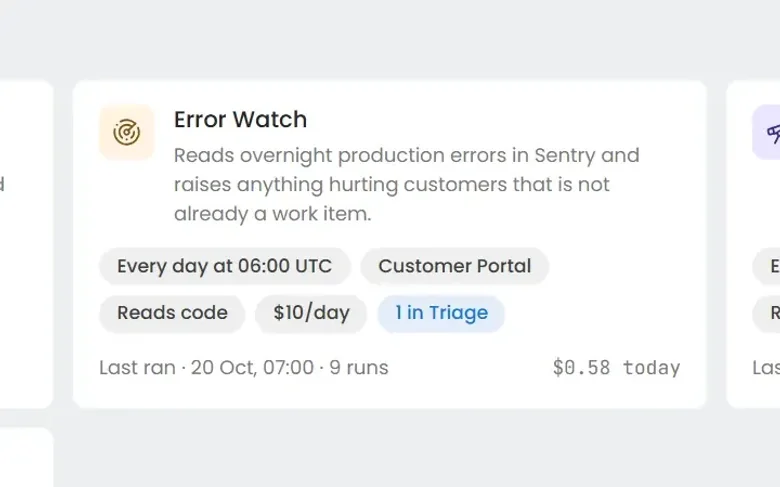 06 Always-on agents Seen Work nobody filed a ticket for What about the problems nobody has reported yet?
-
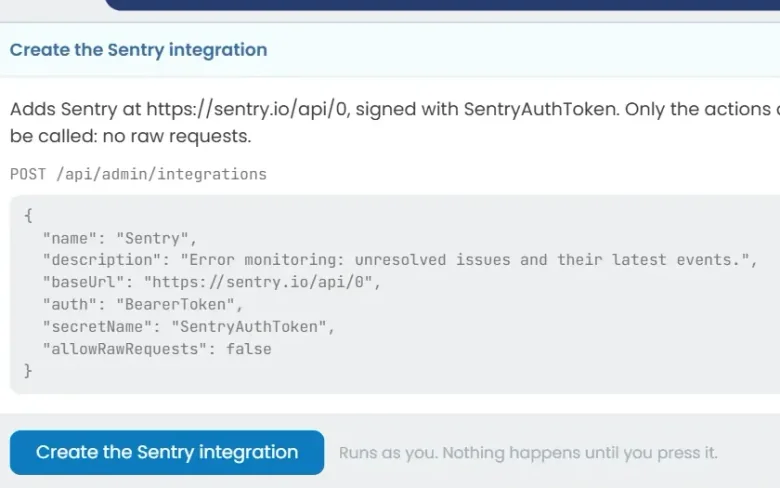 07 Build an agent Seen Build an agent in plain English Can we build our own?
See it on your own work
Install Eido Build from Azure Marketplace into your own Azure subscription, or talk to us about your teams, your repositories and your process.